
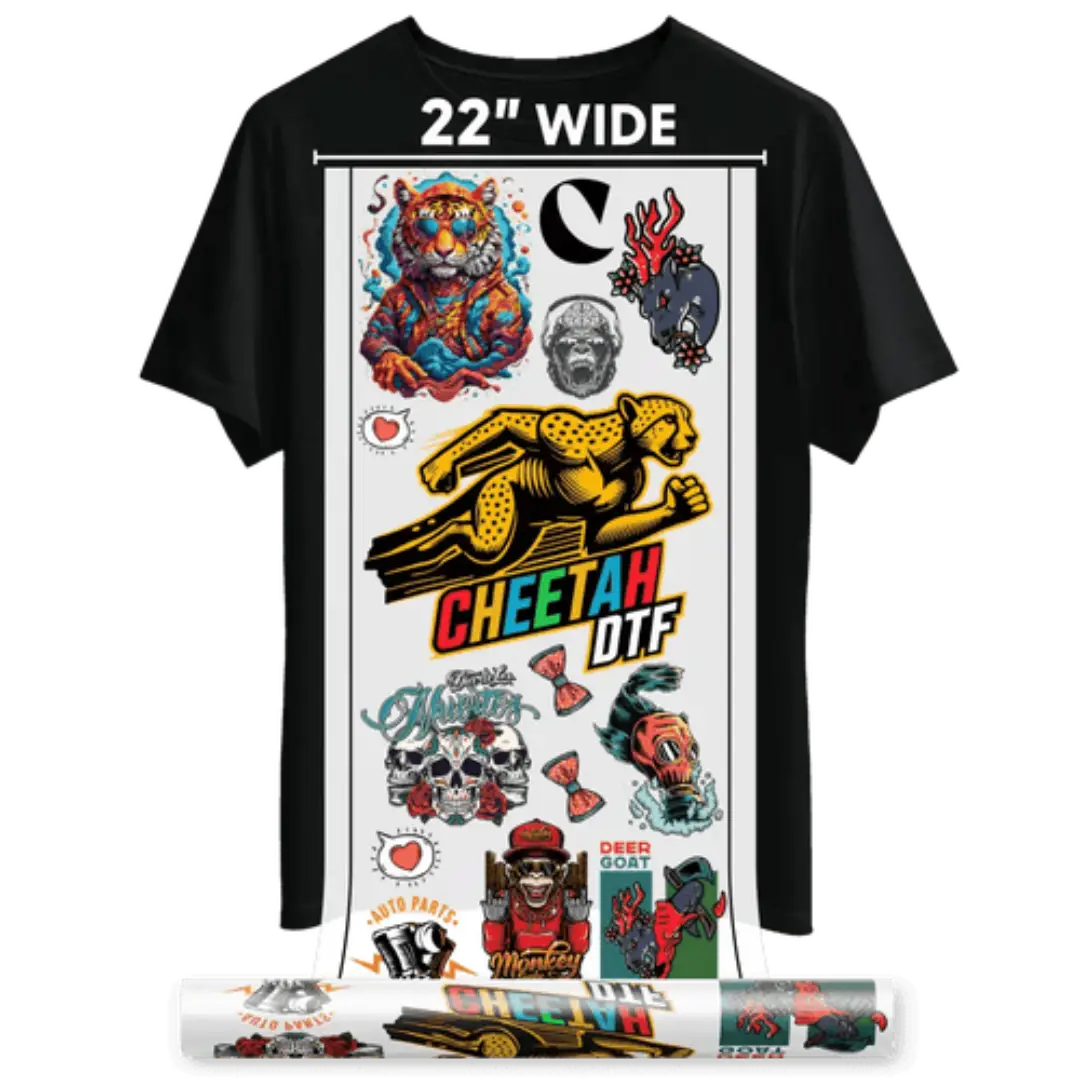
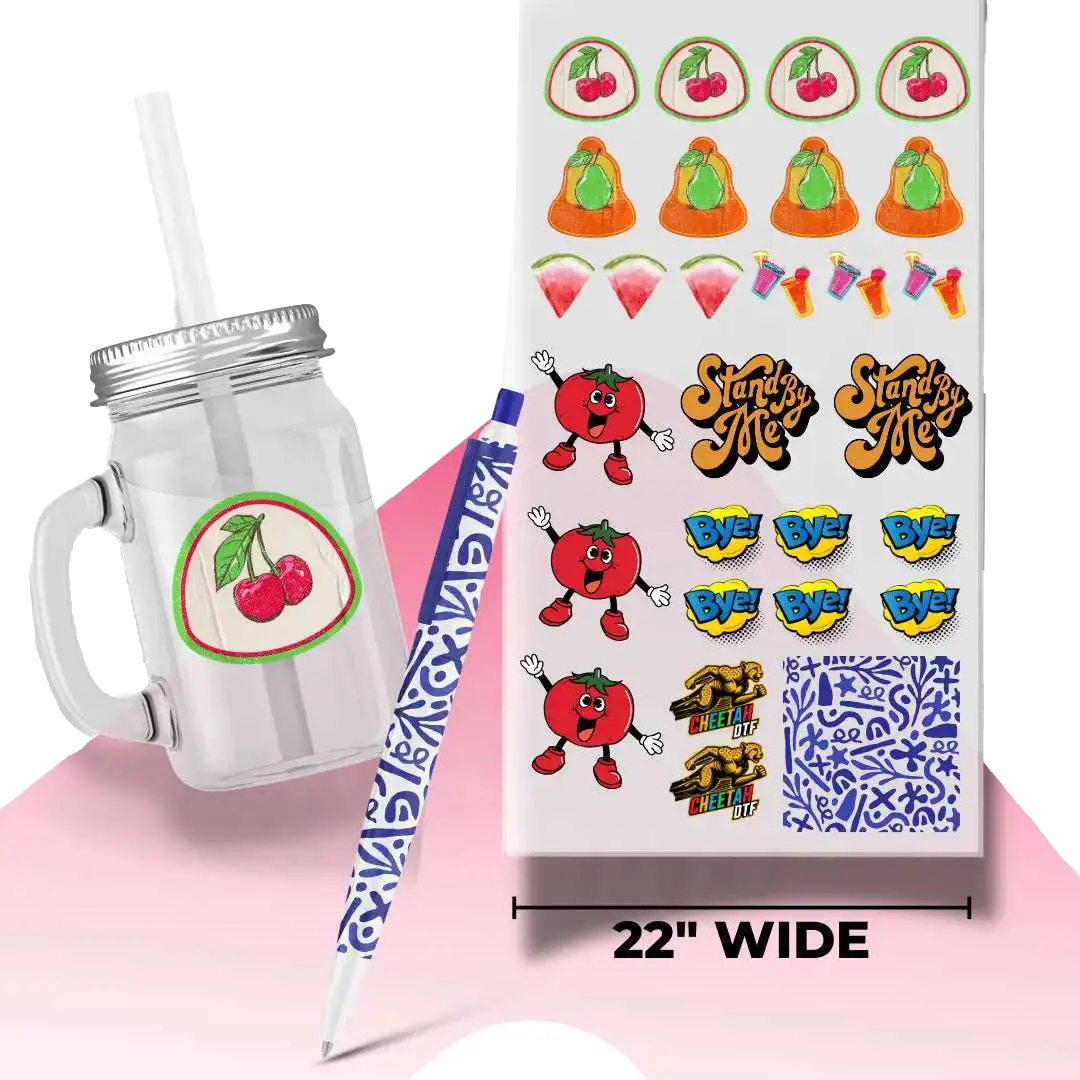


5 Canva Shortcuts You Should Use When Building Thanksgiving Gang Sheets in 2026
Canva is not built for gang sheets, and that is exactly why most clothing brands waste so much time in it. We have watched brands spend two hours dragging the same turkey graphic around a blank canvas, only to export a sheet with tiny gaps that cost them real money in film. Thanksgiving DTF transfers make that waste hurt more, because November orders do not wait for you to fix a layout.
We use Canva ourselves for quick mockups and for fixing client art when Photoshop would be overkill. And we have learned that five shortcuts, used the right way, can turn a messy 22 by 24 inch sheet into something that actually prints clean. These are not fancy tricks. They are the boring, repeatable moves that keep your spacing tight, your text readable, and your press operator from cursing your name.
How to Build a Gang Sheet in Canva Without - Shortcuts to Save You Time and Money
1: Lock Your Canvas Size Before You Touch a Single Design
This is where most people go wrong, and we did too the first time. They open a random Canva size, drop in a bunch of logos, and then try to stretch everything to fit a real sheet later. That never works. Your text gets blurry, your spacing shifts, and your printer has to guess where to cut.
Set the canvas to the exact sheet size you are going to print. If you are building Thanksgiving DTF gang sheets for a 22 by 24 inch sheet, make the canvas 22 by 24 inches at 300 DPI. If you are building a 22 by 12 inch sheet, make it that. Do it first, before you add anything else, because Canva will not forgive you for resizing later.
We also add a thin border guide at 0.25 inches from the edge. That is our safety zone. Anything inside that border risks getting clipped. Anything outside it is wasted film. It sounds picky, but that quarter inch has saved us from reprinting whole sheets when a design sat too close to the edge and peeled unevenly.
|
What to Set |
Our Setting |
Why It Matters for Print |
|
Canvas Size |
22 by 24 Inches |
Matches Real Sheet and Prevents Stretching |
|
Resolution |
300 DPI |
Keeps Text Sharp at 10 Inches Wide |
|
Safety Margin |
0.25 Inches From Edge |
Prevents Clipping and Bad Peels |
|
Background |
Transparent |
Avoids a White Box Around Artwork |
Shortcut 2: Use Copy, Paste, and Position to Keep Spacing Perfect
Dragging is the enemy of a good gang sheet. Your hand will never place ten copies of the same design exactly 0.25 inches apart. Canva’s position tool will. We duplicate a design, paste it, and then use the position numbers to nudge it over by a precise amount. It is slower for the first two copies, and then it is ten times faster for the rest.
Here is how we do it for Thanksgiving DTF transfers wholesale orders. We place the first adult chest design at X 0.5, Y 0.5. We duplicate it, set the second one to X 11.0, Y 0.5. That gives us two large designs side by side with a clean gap. Then we duplicate the row and drop it down to Y 11.5. In three minutes, we have four large designs placed perfectly, and we have not dragged anything.
And if you need to move a whole row later, group it first. Ungrouped rows are how you end up with one design half an inch lower than the rest, and you do not notice until it is already printed. We have been there. It is not fun to explain to a customer why one shirt in their batch looks off.
|
Action |
Canva Move |
Result on the Sheet |
|
Duplicate Design |
Ctrl Plus D or Cmd Plus D |
Exact Copy With Same Size |
|
Set Position |
Top Toolbar Position Numbers |
0.25 Inch Gap Every Time |
|
Group a Row |
Select All and Group |
Moves as One Clean Unit |
|
Align Center |
Align Tool |
No More Crooked Rows |
Shortcut 3: Use Frames and Grids to Test Youth and Toddler Sizes Fast
Adult designs are easy. Youth and toddler sizes are where brands mess up, because they just shrink the adult art and hope it still reads. It does not. A 10.5-inch chest design shrunk to 5 inches will have text so small it looks like a smudge. We have seen brands ship that and then wonder why parents complain.
Instead, we build a test grid in Canva with frames for each size. One frame for adult 10.5 inches, one for youth 8 inches, one for toddler 4.5 inches. We drop the same artwork into each frame and check readability at 100% zoom. If the smallest text is under 0.25 inches tall in the toddler frame, we bump the font or cut the tagline. That one check takes 90 seconds and saves a whole reorder.
This is especially important for Thanksgiving transfers for print shops that are handling family orders. A family order is not 20 of the same size. It is 4 larges, 3 mediums, 2 youth mediums, and one toddler 2T that someone forgot to add until Tuesday. If your Canva file already has all three sizes laid out, you can swap that toddler size in without rebuilding the sheet.
|
Size to Test |
Width in Canva |
What to Check Before Export |
|
Adult Chest |
10.5 Inches |
Smallest Text Still Reads Clearly |
|
Youth Chest |
7.5 to 8 Inches |
Logo Does Not Look Cramped |
|
Toddler Left Chest |
4 to 4.5 Inches |
Tagline Removed or Enlarged |
|
Sleeve or Pocket |
3 to 3.5 Inches |
Simple Shape Only |
Shortcut 4: Use Brand Kit and Styles to Stop Fixing Colors Every Time
If you are building Thanksgiving DTF prints for a clothing brand, color drift is a real problem. You pick a cranberry in one file, a slightly different cranberry in the next file, and suddenly the family set looks like two different orders. Canva’s Brand Kit fixes that, if you actually use it.
We save three to five colors per brand: one main, one accent, one neutral, and one for text. For a Thanksgiving collection, that might be cream, cranberry, charcoal, sage, and mustard. We save the fonts too, one for headings and one for names. Then every gang sheet pulls from the same kit. No more eyeballing hex codes. No more “that looks close enough” that turns out to be not close at all.
And here is the part most people skip. Save the Thanksgiving palette as a separate brand kit for November. Your normal brand palette might be black and white and neon. Your November palette needs to be warmer. If you try to force your year-round palette into a Thanksgiving design, it will look like you did not try. A separate kit lets you stay on brand and still feel seasonal.
Shortcut 5: Use the Ruler, Guides, and Export Settings That Print Shops Actually Need
Canva’s export button is where good gang sheets go to die. People export as JPG because it is the default, and then they wonder why the background is white and the edges look fuzzy. For Thanksgiving transfers for apparel businesses, you need PNG with a transparent background at 300 DPI. JPG will compress your colors and add a white box. That white box will print. We have seen it happen, and it is painful to explain to a customer.
We also turn on rulers and guides before we export. We drag a guide to every gap between designs. If the guides show 0.25 inches consistently, we export. If one gap is 0.18 and another is 0.33, we fix it. That two-minute check is the difference between a sheet that cuts cleanly and a sheet that wastes 12% of the film to uneven spacing, based on what we see when we measure real sheets.
Export at actual size, not at “fit to page.” Canva will sometimes try to be helpful and shrink your sheet. Do not let it. Check the download size before you send it to your printer. A 22 by 24 inch sheet at 300 DPI should be 6600 by 7200 pixels. If your file is 1200 pixels wide, it is not ready to print, no matter how good it looks on screen.
|
Export Setting |
Correct Choice |
Common Mistake to Avoid |
|
File Type |
PNG Transparent |
JPG With White Background |
|
Resolution |
300 DPI at Full Size |
72 DPI Screenshot |
|
Color Mode |
RGB for Canva Export |
Expecting Exact CMYK Match |
|
Final Check |
6600 by 7200 Pixels |
Sending a Low-Res Preview |
How Cheetah DTF Checks a Canva Gang Sheet Before We Print It
We get a lot of Canva files that look perfect on a laptop and fall apart on film. So we run a quick check before we print any wholesale Thanksgiving shirt transfers. We check the canvas size, we check the transparent background, we check the smallest text at 100% zoom, and we check the gaps. If something is off, we send back a screenshot with a mark on it, not a vague email saying “fix your file.”
At Cheetah DTF, we would rather spend five minutes fixing a file than five hours reprinting a sheet. That is why we ask for PNG, not a Canva link. A link can change after you send it. A PNG is locked. It also means we can print exactly what you approved, and you can keep a copy for your records. It sounds boring, but boring is what gets Thanksgiving orders out on time.
The Mistakes We Still See in Canva Gang Sheets Every November
- Leaving text too close to the edge. Canva lets you drag text right to the border, and it looks fine on screen. On film, that text can clip or peel unevenly because there is not enough adhesive around it. Keep 0.25 inches of breathing room. Always.
- Using a low-resolution logo pulled from Instagram. A 500-pixel logo stretched to 10 inches will look soft, and no printer can fix that. Ask the brand for the original file, not a screenshot from their feed. If they only have a small file, make the design smaller. A small sharp logo beats a large blurry one every time.
- Forgetting that Canva does not show you how the transfer will feel on fabric. A huge solid block that looks bold on screen will feel stiff on a tri-blend tee. Break up large solids with negative space. Leave a little fabric showing through. Your customers will thank you when they actually wear the shirt in December, not just for the photo in November.
Conclusion
Building a good gang sheet in Canva is not about being a designer. It is about being precise, saving your colors, testing your sizes, and exporting the right file the first time. When you lock your canvas size, use position instead of dragging, test youth sizes in frames, use a brand kit, and export as a transparent PNG at 300 DPI, you stop wasting film and you stop reprinting sheets. That is how a clothing brand turns Thanksgiving from a stressful rush into a profitable week. At Cheetah DTF, we see brands do this every November, not by working harder, but by building sheets that are ready to print the first time. Send us a clean Canva file and we will turn it into transfers that press clean, peel clean, and hold up long after dinner is over.
Ready to Print Thanksgiving Gang Sheets That Actually Work?
✔ Fast turnaround for Thanksgiving wholesale orders
✔ Consistent print quality across every gang sheet
✔ Competitive pricing for apparel businesses
✔ Responsive customer support when files need a fix
Ready to stop wasting film?
Request Your Quote for Thanksgiving DTF Transfers.
Frequently Asked Questions
How Do I Set Up a Canva File for Thanksgiving DTF Transfers?
Set your Canva canvas to your exact sheet size, like 22 by 24 inches, at 300 DPI, with a transparent background. Add a 0.25-inch safety margin from the edge. Place designs using position numbers, not dragging. Export as a PNG at full size. That setup prevents stretching, clipping, and blurry text on your final sheet.
What Is the Best Export Setting for Thanksgiving DTF Gang Sheets?
Export as a PNG with a transparent background at 300 DPI and at actual sheet size. For a 22 by 24 inch sheet, that is 6600 by 7200 pixels. Avoid JPG, because it adds a white background and compresses colors. Check the file size before sending it to your printer to confirm it exported correctly.
Can I Build Thanksgiving Transfers for Print Shops Using Free Canva?
Yes, you can build basic gang sheets with free Canva, but you will miss Brand Kit and background remover. Those two tools save a lot of time for repeat orders. If you are doing more than a few sheets a month, the paid version pays for itself in saved reprints. Free Canva still works if you export as PNG and check spacing manually.
How Much Space Should I Leave Between Designs on a Gang Sheet?
Leave 0.25 inches between designs and 0.25 inches from the edge of the sheet. That gap gives the cutter room and prevents transfers from touching. Smaller gaps save film on paper but cost more in miscuts. Larger gaps waste film. The quarter-inch rule is the sweet spot most print shops use for clean cuts and easy weeding.
Why Does My Canva Gang Sheet Look Blurry When Printed?
Your file is probably low resolution or a screenshot. A 72 DPI image stretched to 10 inches will always look soft. Use 300 DPI artwork and at least 3000 pixels on the longest side. Check text at 100% zoom in Canva. If it looks blurry there, it will look worse on film. Replace the logo with a high-resolution version.
Can Cheetah DTF Fix My Canva File for Thanksgiving DTF Transfers?
Yes, we can review your Canva file for Thanksgiving DTF transfers and flag spacing, resolution, and background issues before printing. Send a PNG at full size, not a Canva link, so we print exactly what you approved. We will send back a marked screenshot if something needs fixing, so you can correct it fast without guessing.
How Do I Fit Youth and Adult Designs on One Thanksgiving DTF Gang Sheet?
Build frames for each size in Canva and test readability before you place them. Use 10.5 inches for adult, 8 inches for youth, and 4.5 inches for toddler left chest. Group adult sizes together and youth sizes together. That keeps pressing consistent and lets you swap a size without rebuilding the whole sheet from scratch.
What Colors Work Best for Thanksgiving DTF Prints in Canva?
Cream, cranberry, charcoal, sage, and mustard work best for Thanksgiving and photograph well. Save them as a separate Brand Kit for November. Avoid using bright orange as a large solid, because it can look like a costume. Use orange as an accent. Consistent colors across sheets make family sets look like they were planned, not pieced together.
How Do I Avoid Wasting Film on Thanksgiving Transfers for Apparel Businesses?
Use position numbers instead of dragging, keep gaps at 0.25 inches, and export at full size. At Cheetah DTF, we see brands waste 10% to 15% of film from uneven gaps and oversized designs. A clean grid and a final guide check before export will cut that waste and lower your cost per transfer across a full Thanksgiving run.
How Long Does It Take to Build a Thanksgiving Gang Sheet in Canva?
A clean gang sheet takes 20 to 30 minutes once your canvas, colors, and sizes are saved. The first sheet takes longer because you are setting up guides and brand colors. After that, duplicating a proven layout is fast. Rushing the setup is what causes reprints, so spend the time upfront and reuse the template all season.